
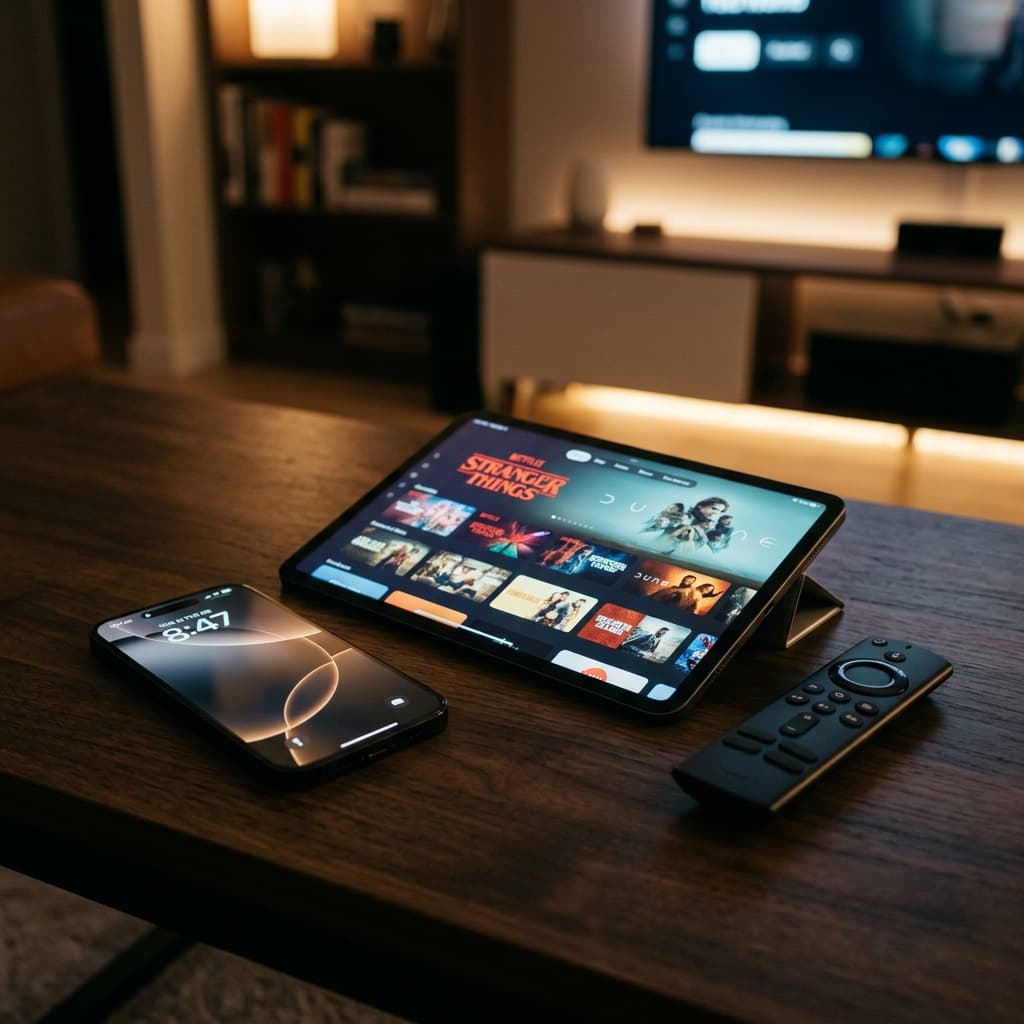
While Android is often praised as the easiest platform for IPTV, Apple users are not left behind! Whether you are using an iPhone, an iPad, or the powerful Apple TV 4K, watching your premium Best4IPTV subscription is simple and seamless.
In this guide, we will walk you through the easiest way to get your M3U playlist or Xtream Codes running on any Apple device using the best apps available in the App Store.
Step 1: Download an IPTV App
Unlike Android, you cannot sideload apps easily on iOS. Fortunately, the official Apple App Store has excellent IPTV players available for free. We highly recommend using Smarters Player Lite or GSE Smart IPTV.
- Open the App Store on your iPhone, iPad, or Apple TV.
- Search for "Smarters Player Lite" or "GSE Smart IPTV".
- Tap Get to download and install the application.
Step 2: Login with Xtream Codes API
Once you have received your subscription details from Best4IPTV (which are sent immediately to your email after checkout), follow these steps:
- Open the newly installed app.
- If prompted, agree to the Terms of Service.
- Select the option: Login with Xtream Codes API (this is much easier than typing a long M3U URL).
- Enter any name in the "Any Name" field (e.g., "Best4IPTV").
- Enter the Username provided in your email.
- Enter the Password provided in your email.
- Enter the Server URL provided in your email (make sure to include http:// or https://).
- Tap Add User.
Step 3: Start Watching!
After adding the user, the app will take a few moments to download the channels, VOD (Video on Demand), and TV Series from our servers.
Once the download is complete, simply tap on the Live TV icon to browse our 20K+ channels categorized by country, or check out the Movies section for the latest cinematic releases in 4K.
Don't have an account yet? What are you waiting for! Head over to our Checkout Page and get your instant access details now.