
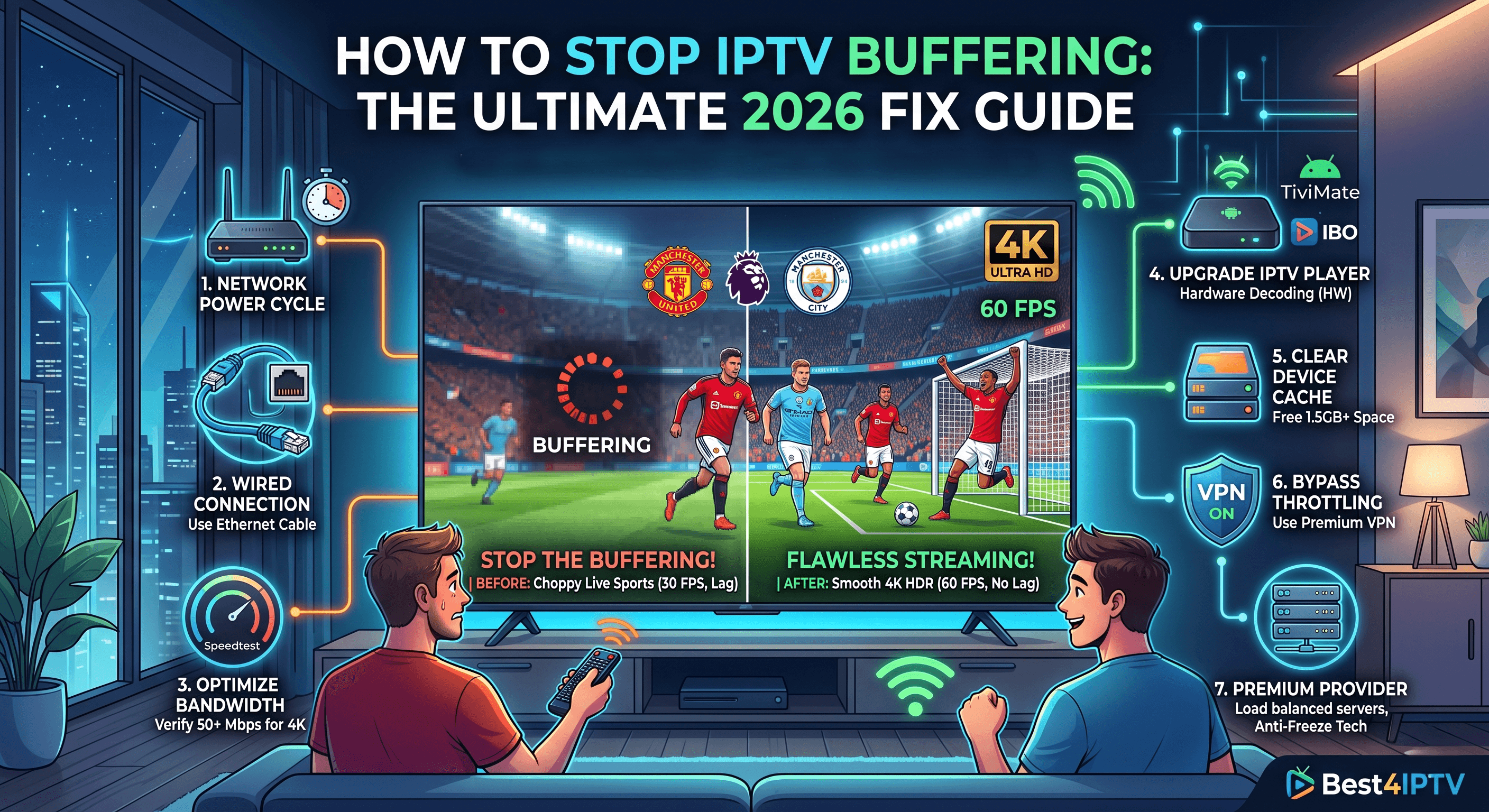
There is nothing more frustrating than sitting down to watch a highly anticipated live sports match or the climax of a movie, only for the screen to freeze and the dreaded "buffering" circle to start spinning.
IPTV (Internet Protocol Television) has revolutionized how we consume media, replacing outdated cable cords with flexible streaming. However, because IPTV is completely reliant on data transmission over the internet, it is vulnerable to network bottlenecks, server load issues, and hardware constraints.
If you are tired of constant interruptions and want to know how to stop IPTV buffering once and for all, you are in the right place. In this masterclass guide, we will analyze the technical root causes of buffering and provide 7 detailed, proven fixes to optimize your setup for flawless 4K streaming.
📋 Table of Contents
- • Understanding Why IPTV Buffers (The Tech Behind It)
- 1. Perform a Full Network Power Cycle
- 2. Switch to a Wired Connection (Ethernet)
- 3. Verify and Optimize Your Internet Bandwidth
- 4. Upgrade Your IPTV Player (Hardware vs. Software Decoding)
- 5. Clear Device Cache and Manage Storage (Firestick, Android)
- 6. Bypass ISP Throttling & DPI with a Premium VPN
- 7. Switch to a Premium IPTV Provider with Anti-Freeze Tech
- 8. Frequently Asked Questions (FAQ)
🧠 Understanding Why IPTV Buffers (The Tech Behind It)
Before diving into the fixes, it helps to understand why IPTV behaves differently than platforms like Netflix or YouTube.
When you watch video-on-demand (VOD) on Netflix, the app pre-downloads (buffers) several minutes of the movie ahead of what you are viewing. If your internet drops for 5 seconds, you won't notice it because the app plays the pre-downloaded video.
Live IPTV is streamed in real-time. There is no "future" video to pre-download. If your connection drops for even half a second, or if a data packet gets lost (packet loss), the stream instantly stalls. That is why live IPTV requires absolute connection stability, not just high speeds.
1. Perform a Full Network Power Cycle
Almost every IT support conversation starts with "have you tried turning it off and on again?"—and for good reason. Your internet router operates 24/7, processing routing tables, handling IP allocations (DHCP), and running internal firewalls. Over time, its memory (RAM) gets congested, leading to packet delay (jitter).
Similarly, streaming devices like the Amazon Firestick run background processes that hog system memory, leaving very little RAM for video rendering.
How to do a Proper Power Cycle:
- Unplug your router and modem from the wall outlet.
- Unplug your streaming device (Smart TV, Android Box, Firestick) from its power source.
- Leave everything disconnected for at least 60 seconds to allow capacitors to discharge fully.
- Plug your router back in first and wait for it to establish a solid internet connection (about 2 minutes).
- Turn on your streaming device, launch your IPTV app, and test the stream.
2. Switch to a Wired Connection (Ethernet)
Wi-Fi is perfect for mobile devices, but it is notoriously unstable for real-time live streaming. The 2.4 GHz Wi-Fi band is overcrowded with interference from baby monitors, Bluetooth devices, and microwaves. The 5 GHz band is faster but has terrible range and struggles to penetrate walls.
Even if your device shows "full bars," Wi-Fi signals fluctuate constantly. These micro-drops cause instant buffering in live streams.
The Solution: Whenever possible, connect your Smart TV or Android Box directly to your router using a physical Cat6 Ethernet cable.
What if your router is in another room?
If running a long cable isn't an option, consider using Powerline Adapters. These clever devices use your home's existing electrical wiring to transmit internet data from your router to your TV, providing the stability of a wired link without the clutter of running long cables.
3. Verify and Optimize Your Internet Bandwidth
To stream live TV smoothly, you must meet certain bandwidth thresholds. However, it's not just about the download speed; latency (ping) and jitter are equally critical. High ping means it takes longer for your device to request data from the stream server.
Below is a breakdown of speed and latency requirements for stable IPTV streaming:
The Test: Go to Speedtest.net on a computer or smart device. Ensure the device you test on is in the exact same location as your TV. If your download speed is high but your ping is over 100ms, or your jitter is over 30ms, your network is too unstable for live streams and will suffer from freezing regardless of speed.
4. Upgrade Your IPTV Player (Hardware vs. Software Decoding)
Sometimes the issue lies in how your streaming app processes the video file. Media players use two methods of decoding video data:
- Hardware Decoding (HW): Uses your device's physical graphics chip to render video. Extremely fast and efficient.
- Software Decoding (SW): Uses the CPU to render video. Slower, heats up the device, and causes frame drops.
Many free or poorly designed apps default to software decoding, which lags on high-definition 1080p and 4K streams.
The Solution: Switch to a professional media client. Our top recommendations are:
- TiviMate: The absolute gold standard for Firestick and Android TV devices. Beautiful interface, extremely fast channel zapping, and efficient video decoding options.
- IBO Player Pro: Excellent for newer LG, Samsung, and Apple TV systems.
Inside your chosen app's settings, find the "Playback" or "Decoder" menu and make sure Hardware Decoding (HW) is enabled for both video and audio.
👉 Learn More: See our complete analysis in the Best IPTV Players of 2026 list.
5. Clear Device Cache and Manage Storage (Firestick, Android)
Streaming sticks like the Amazon Fire TV Stick Lite/4K are affordable, but they only have 8GB of internal storage and 1.5GB to 2GB of RAM. When multiple applications (Netflix, Prime Video, YouTube) run in the background, they create heavy cached files that consume storage.
When your device has less than 1.5GB of free storage space, its operating system slows down dramatically, bottlenecking the buffering process.
Step-by-Step Fix for Firestick/Fire TV:
- Go to Settings (gear icon) on the home screen.
- Select Applications > Manage Installed Applications.
- Scroll down and select your IPTV app.
- Click Clear Cache. (Note: Do NOT click 'Clear Data' or you will delete your login settings and playlists).
- Repeat this step for other heavy apps like YouTube, Netflix, or web browsers to free up memory.
6. Bypass ISP Throttling & DPI with a Premium VPN
Does your stream work perfectly fine in the morning, but starts buffering continuously during peak hours (8 PM - 11 PM) or specifically when live English Premier League or Champions League soccer games start?
This is a classic symptom of ISP Throttling.
Internet Service Providers use a technique called Deep Packet Inspection (DPI) to see what type of data is passing through their network. When they detect high-bandwidth connections to IPTV streaming server IPs, they intentionally throttle (limit) your connection speed to reduce overall network strain.
How a VPN Solves This:
A Virtual Private Network (VPN) encrypts all data leaving your device. Your ISP can only see that you are connected to a VPN server, but they cannot read the contents of the data or see where it is going. Because they cannot identify your traffic as IPTV, they do not throttle it.
👉 Deep Dive: Read our comprehensive guide on Setting Up a VPN for Safe, Buffer-Free IPTV Streaming.
7. Switch to a Premium IPTV Provider with Anti-Freeze Tech
If you have connected an Ethernet cable, verified your speed is over 50 Mbps, cleared your cache, and turned on a premium VPN, yet the buffering persists... then we have bad news.
Your IPTV provider is the bottleneck.
Cheap IPTV providers host their streams on low-end servers with limited bandwidth. When a major live event occurs and thousands of users connect simultaneously, the servers become overloaded, failing to deliver the stream packages to your device in time.
To experience truly buffer-free live streaming, you need a provider that uses a network of high-performance servers, load-balancers, and modern anti-freeze technology.
❓ Frequently Asked Questions (FAQ)
Why does my IPTV freeze but Netflix/YouTube works perfectly?
Netflix and YouTube use Content Delivery Networks (CDNs) located close to your city. They also use aggressive pre-buffering, downloading minutes of content ahead of your viewing. IPTV live streams are broadcast in real-time, meaning there is no pre-buffered video. If a single packet is delayed, the screen freezes immediately.
Does using a VPN slow down my streaming speeds?
A VPN encryption process will usually reduce your raw speed by 5% to 10%. However, if your ISP is throttling your connection, a VPN will bypass that limit, actually making your connection much faster for IPTV.
What is Anti-Freeze technology in IPTV?
Anti-Freeze is a server-side load balancing system. If one streaming node experiences high load or latency, the server automatically routes your connection to an identical stream on a quieter server node without interrupting your broadcast.
The Ultimate Buffer-Free Fix: Join Best4IPTV
Stop wrestling with slow connections and cheap servers. Best4IPTV is engineered from the ground up for high-capacity, low-latency streaming.
- 99.9% Uptime Guarantee via Load Balanced Servers
- Anti-Freeze Tech with native H.265 / HEVC support
- 170,000+ Movies & Series in True HD & 4K Quality